1. Export a CSV marker file from Pix
Open the comments panel on the right side in Pix. Press the three dots and select "Export". Now you can then download the CSV file from Pix.
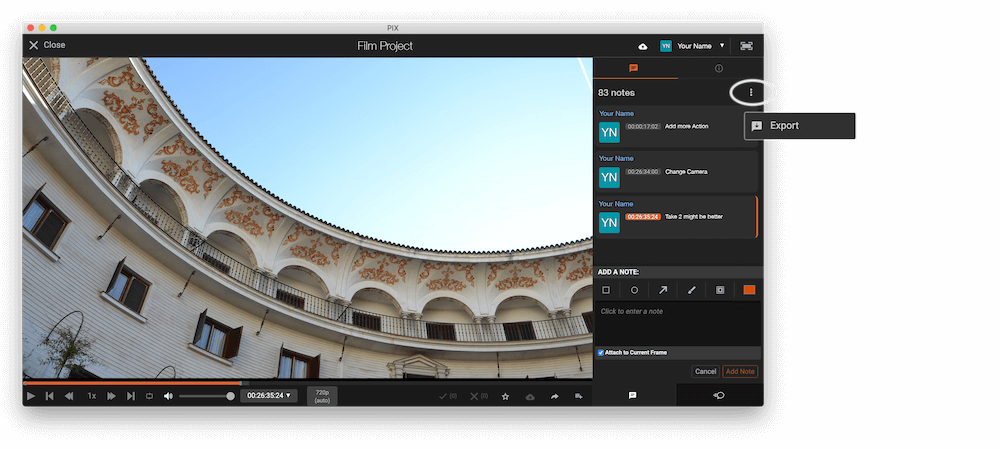
The timecode in Pix starts with 00:00:00:00 for each clip, so you may need to use the offset function on EditingTools.io to sync it with you timeline or move it manually in your NLE (editing software).
2. Use the "Markørkonverterer" to convert the CSV marker file into a ptx marker file
Open the free Markørkonverterer, select "Pix Systems > Comments (.csv)" and set "convert" to "Pro Tools > PTX File (.ptx)". Generate and download the file. Hvis du har problemer med å konvertere filen, kan du kontakte den gratis kundestøtten.
🚀 Ferdig
Det var alt for nå! Hvis du syntes denne veiledningen var nyttig, del den gjerne for å støtte oss. Hvis du har forslag til hvordan vi kan forbedre arbeidsflyten, gi oss beskjed!