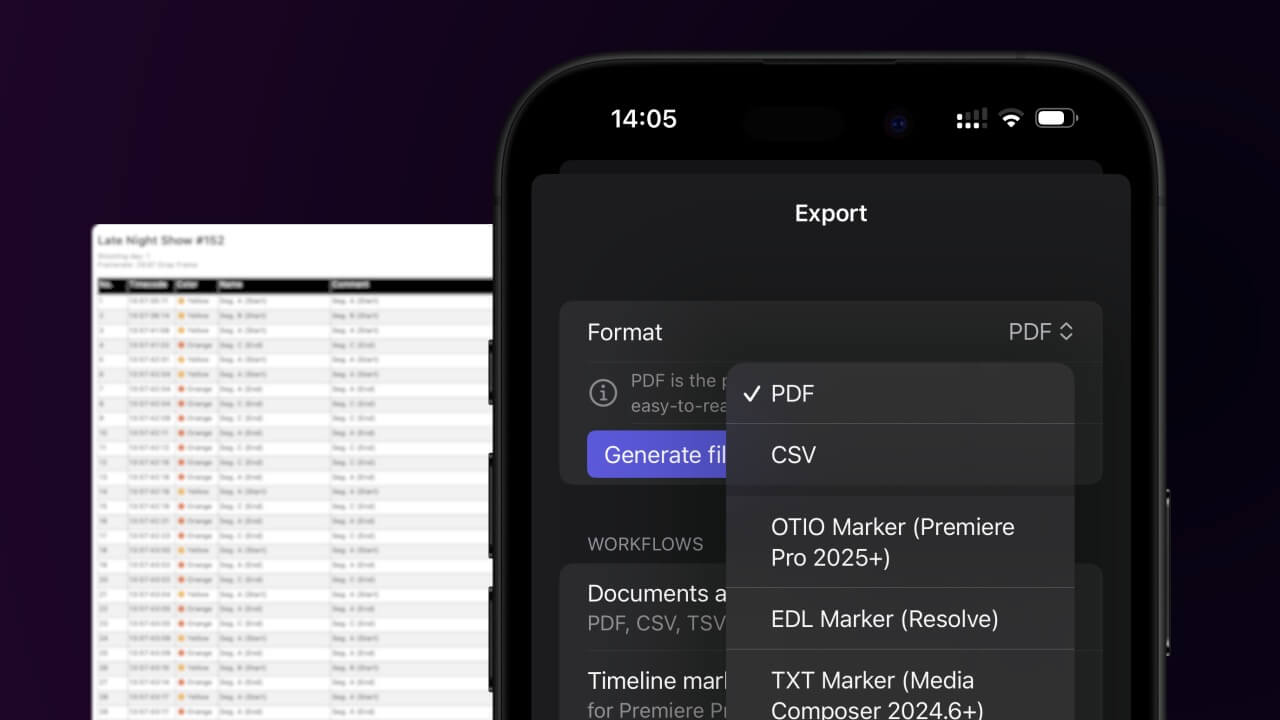
1. Export a CSV file from Live Timecode Notes app
Open the project in the app, then select "Export Notes" from the top menu. Select "CSV". Generate and save the file.
2. Use the "Markørkonverterer" to convert the CSV file into a ptx marker file
Open the free Markørkonverterer, select "CSV" and set "convert" to "Pro Tools > PTX File (.ptx)". Generate and download the file. Hvis du har problemer med å konvertere filen, kan du kontakte den gratis kundestøtten.
Ensure that the CSV file contains columns labelled "Timecode In", "Name" and "Comment". Otherwise, it will not work. You can also add columns for 'Colour' and 'Timecode Out'.
🚀 Ferdig
Det var alt for nå! Hvis du syntes denne veiledningen var nyttig, del den gjerne for å støtte oss. Hvis du har forslag til hvordan vi kan forbedre arbeidsflyten, gi oss beskjed!